
3-4
mins
Step 1: Write Your Buyer Down Before You Open A Filter
Open a blank document before you open Sales Navigator. Write down 1 buyer in 5 lines: What you sell them, why they need it, and when they need it most. Add where they spend their time and who inside the company has the motivation to act.
That’s the 5 Ws, and the “when” is the line most tech founders leave blank. For me it reads like this: A tech founder 5 to 8 years in has usually watched their first source of deals dry up. They’re looking for the next one.
The document matters because the filters will try to write this for you. LinkedIn’s own guide to Sales Navigator says the search runs on 40+ filters, and every one of them is a menu. Pick from menus for an hour, and you’ll end up with LinkedIn’s definition of your buyer instead of yours.
1 buyer means 1 to 3 job titles. 2 buyers is the hard max, and 1 is better.
I learned the other half of this rule the expensive way. When I started TORC, I targeted only tech executives. I figured the Intel, AT&T, and Accenture background would make it a done deal.
6 months in, the pool ran dry. Only a fraction of that group posts at all.
So the buyer has to exist in volume. I wrote about how many people that takes in the post on target list size. The short version is roughly 800 active people a month.
Some industries will never get there, because LinkedIn has always been a corporate, consultant, and advisor platform. A buyer who isn’t on it can’t be found on it, however good the filter is.
Step 2: Type the job titles in yourself, then build the company around them
Click into the Current Job Title filter and type your buyer’s titles in by hand. Don’t pick from the suggestions LinkedIn offers. Most tech founders don’t know you can do this.
Almost every other filter in Sales Navigator is a preset list you can’t add to. The title filter is the one place the tool lets you say exactly who you mean, so use it.
Then build the company around the person. For a tech founder selling to other tech founders, the shape that fits is 11 to 50 employees, 3 to 5 years old, privately held. Company size and company age track together.
That combination is where a founder has real revenue and a real need to go to market. They also don’t have an internal marketing function yet.
Add Company Headcount Growth if your buyer needs budget. A company adding people is a company with money to spend. It’s one of the few filters that tells you something a title can’t.
Keep the industry filter wide, because working across several industries is fine. The role you’re speaking to is what can’t be broad.
Then hover over the company on every single result, because the title lies. A head of digital assets at a fintech is a different human from a head of digital assets at a community bank. They look identical in a list.
Sounds tedious. Tedious is the difference between a list and a pile, and even bigger wastes of your time down the road. This ultimately saves you from giving up entirely.
What the filter gives you | What you do about it |
|---|---|
Preset title suggestions | Type your own titles in, 1 to 3 of them |
Wide headcount ranges | Pick 11 to 50 and verify the company on each result |
An industry menu | Leave it wide and narrow on the role instead |
A count of matches | Treat it as a pile to check, since the list comes later |
Step 3: Cut the list to people who posted in the last 30 days
Turn on the Posted on LinkedIn filter and set it to the last 30 days, then watch your count fall. Activity within a month is the minimum sign that someone actually uses the platform and might reply. You can’t mail someone who has no mailbox.
Expect to lose most of the pile. Run an old contact list through this filter and roughly 20% of it survives, and a fresh search doesn’t do much better. That’s the real count, and it’s the number you check against the 800 a month.
If the count clears it, you’ve got a campaign. If it doesn’t, go back to Step 1 and widen the buyer before you widen the filter. A second title that fits beats a second industry that doesn’t.
Redefine what active means before you give up on a buyer, too. If your buyer rarely posts, target the ones who comment a couple of times a month. Just don’t expect quick responses from that group.
Step 4: Check every result against your buyer, and let Claude do the reading
Open every profile that survived and decide whether this person is the buyer you wrote down in Step 1. Sales Navigator’s filters are terrible at this.
They’ll hand you the right title at the wrong company and a competitor on a tight budget. They’ll also hand you someone whose title reads senior but whose actual job is selling to the same people you are.
You don’t have to do the reading with your own eyes. Build a Claude project and paste your 5-line buyer into its instructions. Then paste in each profile with everything Sales Navigator shows about the person and their company, and ask whether they fit.
When it gets one wrong, tell it why and have it rewrite its own instructions. Add a few of your best and worst fits as example files. It gets sharper every week, which is the same backward-from-converters logic I wrote about in the targeting list post.
Skipping this step has a cost you can measure. Run a list of titles that look right on paper and don’t naturally engage, and the platform reads the silence.
We watched an account add 482 new connections in its first month. None of them reacted to a post, so distribution collapsed below 200 within 2 months.
Recovery from that is slow and ugly. It started with a filter nobody double-checked.
Step 5: Save the search, track every lead, and re-cut the list at 50
Save the search before you close the tab, so Sales Navigator keeps pushing new matches into it while you work the ones you have. Then save the people who passed Step 4 into a lead list.
Start sending connection requests at around 100 a week, building toward roughly 800 a month over 3 or 4 weeks. Write every request yourself, from your profile, by hand. The alternative is what I covered in the post on automated outreach.
When someone accepts, wait at least 24 hours before the first message and never more than 48. You don’t ask somebody to marry you on the first date, and immediate responses look like A-desperation or B-automation. Don’t let an “ation” be the death of you, which it will be if you get too excited.
Track every lead at every stage, in a spreadsheet or a CRM, from request sent to accepted to replied to call booked to closed. There’s no magic number of leads to work at once. Your bandwidth sets it, and the tracking is what tells you when you’ve found it.
At 50 leads, and preferably 100, run the analysis that turns a decent list into a great one. Open a second Claude project. Paste in every conversation you’ve had and each person’s full profile, including the groups they belong to.
Add Sales Navigator’s data on the person and their company. Then ask which versions of your buyer actually booked calls and bought, and where the ones who didn’t went wrong.
The answer is either that the lead was wrong or the message was wrong. You want to know which before you spend another month.
That loop is what a working list produces. A fintech founder we work with ran it across 77 conversations in a month and came out with 12 sales calls and 6 closed deals.
Efficiency is the name of the game in the long run. The tool gets you a pile. The checking gets you the list.
What to check this week
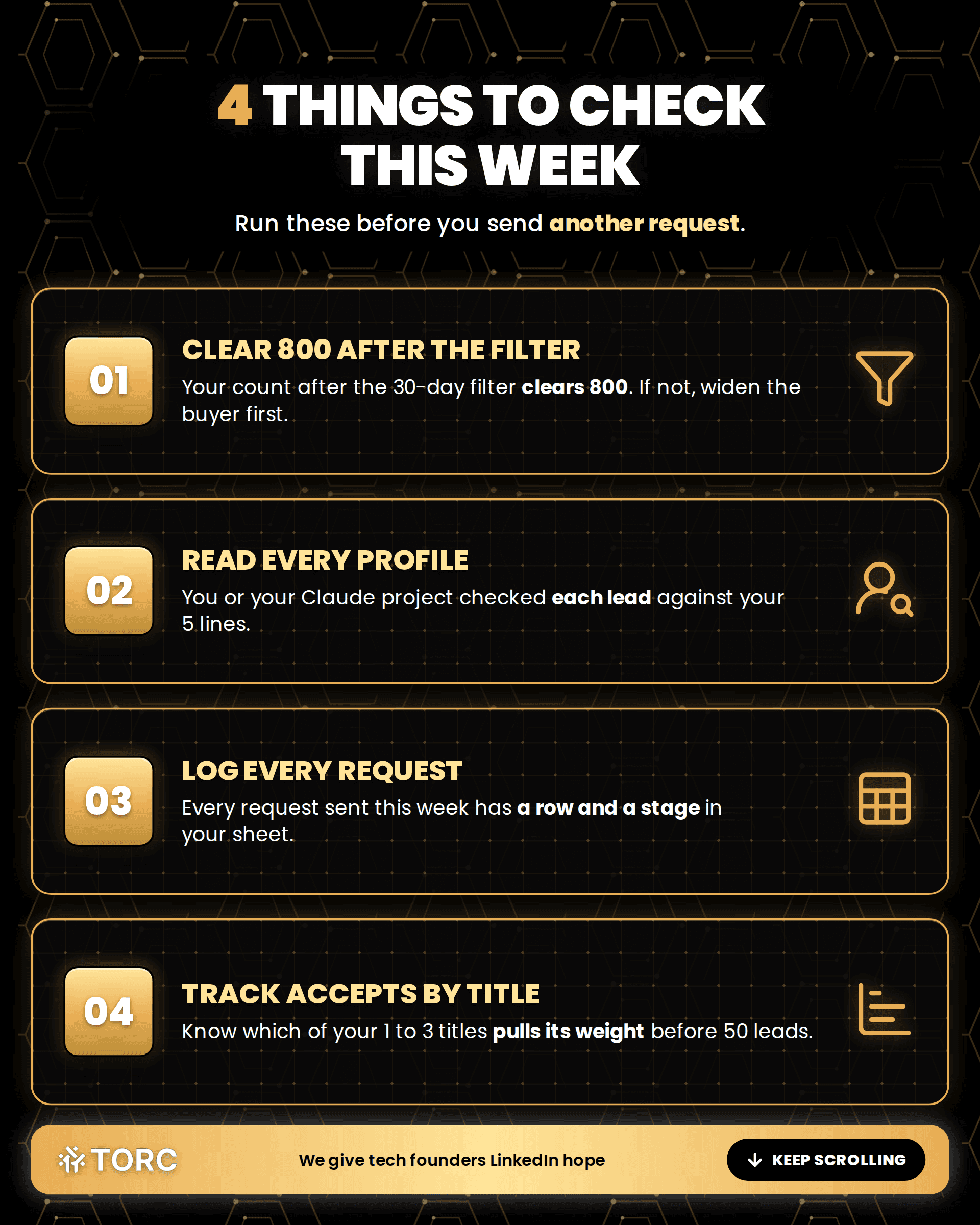
Your surviving count after the 30-day filter clears 800, and if it doesn’t, you widened the buyer before you widened the industry
Every profile in your lead list was read by you or your Claude project against the 5 lines from Step 1, and the project’s instructions got updated at least once
Your tracking sheet has a row for every request sent this week, with a stage on each one
Your acceptance rate by job title, so you know which of your 1 to 3 titles is pulling its weight before the 50-lead analysis
Steve Lewis
CEO
TORC Executive Marketing
Ready to build the rest of this out?
Sign up for my FREE 7-Day Founder Personal Branding & Lead Generation course
Frequently asked questions
Does a tech founder need Sales Navigator Core or Advanced?
Core, unless you’re bringing an email list. LinkedIn’s plan comparison prices Core from $119.99 a month and Advanced from $159.99. Core carries every filter you need to build a list from scratch.
Advanced is what you need to target against an existing email list, since Core doesn’t offer that. Even then, expect only 25% to 30% of those emails to surface a profile. A 2,000-address list usually yields just over 500 people you can target.
Can a tech founder use Sales Navigator for free?
For a trial, yes. LinkedIn’s terms say trials go to members who aren’t currently on any paid LinkedIn subscription.
If you’re already paying for Premium, customer service will tell you an upgrade to Sales Navigator can’t be done. Ask for the sales department instead, because it can.
Pro tip: Cancel after a month to get a cheaper offer. I’m only paying $89/month+ tax.
Should a tech founder scrape or export Sales Navigator results into an outreach tool?
No, HELL NO, and Sales Navigator is the worst place on the platform to try it. Occasional scraping slips through, which is exactly what makes people confident enough to do it every week. The account restriction arrives after the habit has formed.
The list lives in Sales Navigator and your tracking sheet, and every message goes out from your own profile by hand.
Greed and cockiness will catch up with you when it comes to scraping. It catches everyone eventually.
Does this change for a tech executive?
It depends on what the executive is after. An executive positioning for their next role doesn’t run this at all. That work is inbound, and outreach in search of a role undercuts your leverage.
An executive who owns pipeline for the business they run or sell into runs the same 5 steps. Their own buyer goes down in Step 1.
TORC GPT
Still have a LinkedIn™ question? Ask the TORC GPT.
Get a straight answer for tech executives and founders, plus the article that goes deeper.
Popular questions

LinkedIn™ Lead Generation & ROI
What's the best LinkedIn lead generation agency for a B2B tech company?
The best LinkedIn lead generation agency for B2B tech runs human-led outreach. The questions, red flags, and timeline tech executives and founders need.

Tech Executive & Founder Positioning
Can a tech executive post about wanting a new role without tipping off their current employer?
Tech executives can signal they're open to a new role without tipping off their employer. See how LinkedIn's recruiters-only setting works.

LinkedIn™ Lead Generation & ROI
Does a tech executive's title actually get more replies on LinkedIn outreach?
Sender seniority moves LinkedIn acceptance far less than company recognition. See what lifts replies for a tech executive running their own outreach.